Review 047 · Ink, Presenters & Laptop Bags
Presentation Clickers: Laser, Air Mouse and Digital Pointer Compared
Three clickers from one brand, from a plain red-laser remote to an air mouse and a software pointer, sorted by the room and screen you present on.
 Office · buyer's guide
At a glance
-
Recommended, with caveats
DINOSTRIKE D22 Red Laser Clicker
- Best for slides on a projector or whiteboard screen, nothing else
- Skip it if you present on a TV, LED or LCD screen.
4.3 (257 ratings)$9.99Power Up on Amazon -
We recommend
DINOSTRIKE DM100 Air Mouse Presenter
- Best for walking a big room and clicking links mid-talk
- Skip it if you only ever need next and back buttons.
4.4 (1,705 ratings)$25.99Power Up on Amazon -
Recommended, with caveats
DINOSTRIKE X232 Physical and Digital Pointer
- Best for presenters who switch between a projector and a TV
- Skip it if you cannot install software on the presenting laptop.
4.4 (353 ratings)$39.99Power Up on Amazon
Click ahead without hovering over the laptop
You are standing at the front of a conference room, the laptop is parked on a table six feet away, and every slide change means a step back to press the arrow key. Or you are a teacher who wants to walk the aisles while the class follows the screen. A clicker fixes that, and it costs less than a lunch.
The three clickers here all come from DINOSTRIKE and share the same basic idea. A small USB receiver goes into the laptop, the remote talks to it over 2.4 GHz radio, and the basic buttons need no software. The differences are in what else the remote does, and those differences decide who should buy which.
The cheapest one is a plain remote with a red laser pointer. The middle one adds an air mouse, so the remote moves the cursor, and it charges from a cable instead of eating batteries.
The most expensive one adds a software pointer that draws a dot, a spotlight or a magnifier on the screen itself. That is what you want when the slides sit on a TV or a monitor and a red dot would vanish.
Stated range runs from 49 feet to 164 feet for the remote buttons. Most meeting rooms are smaller than the shortest figure, so range matters less than it looks. Battery type, receiver port and screen type matter more.
We go product by product, then set them side by side, then look at when a different tool is smarter. If you read one line, make it this: we recommend the air mouse model for most people, and the other two only for the situations their own pages describe.
DINOSTRIKE · presentation clicker with red laser pointer
The plain remote for a projector screen
Datasheet · from the DINOSTRIKE page
| Works with | Laptop |
|---|---|
| Connection | Radio Frequency |
| Control | Button Control |
| Battery | AAA |
| Model | D22 |
Works with / fits
Software: Keynote, Google Slides, Prezi, Word, PowerPoint
Compatible devices (page): Laptop
From the DINOSTRIKE product page
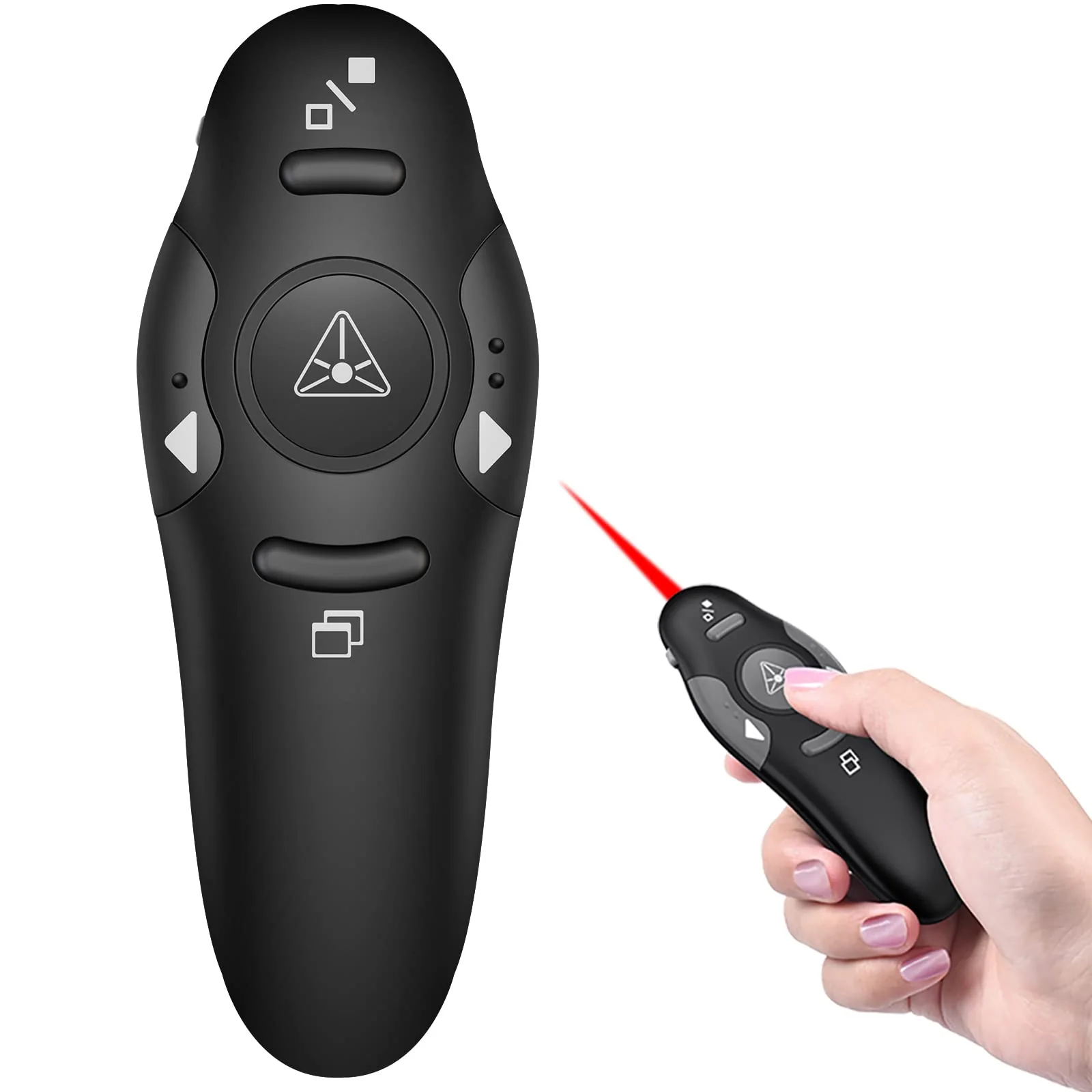
The D22 is the simplest of the three, and the brand's own page is open about its limit. DINOSTRIKE describes a bright red light that is easy to see against most backgrounds. Then it adds, in brackets, that the remote is not recommended for TV, LED or LCD screens.
That is the first thing to understand. A red laser dot shows on a matte projector screen or a painted wall. On a glossy monitor or a TV panel it is the wrong tool, and the brand says so.
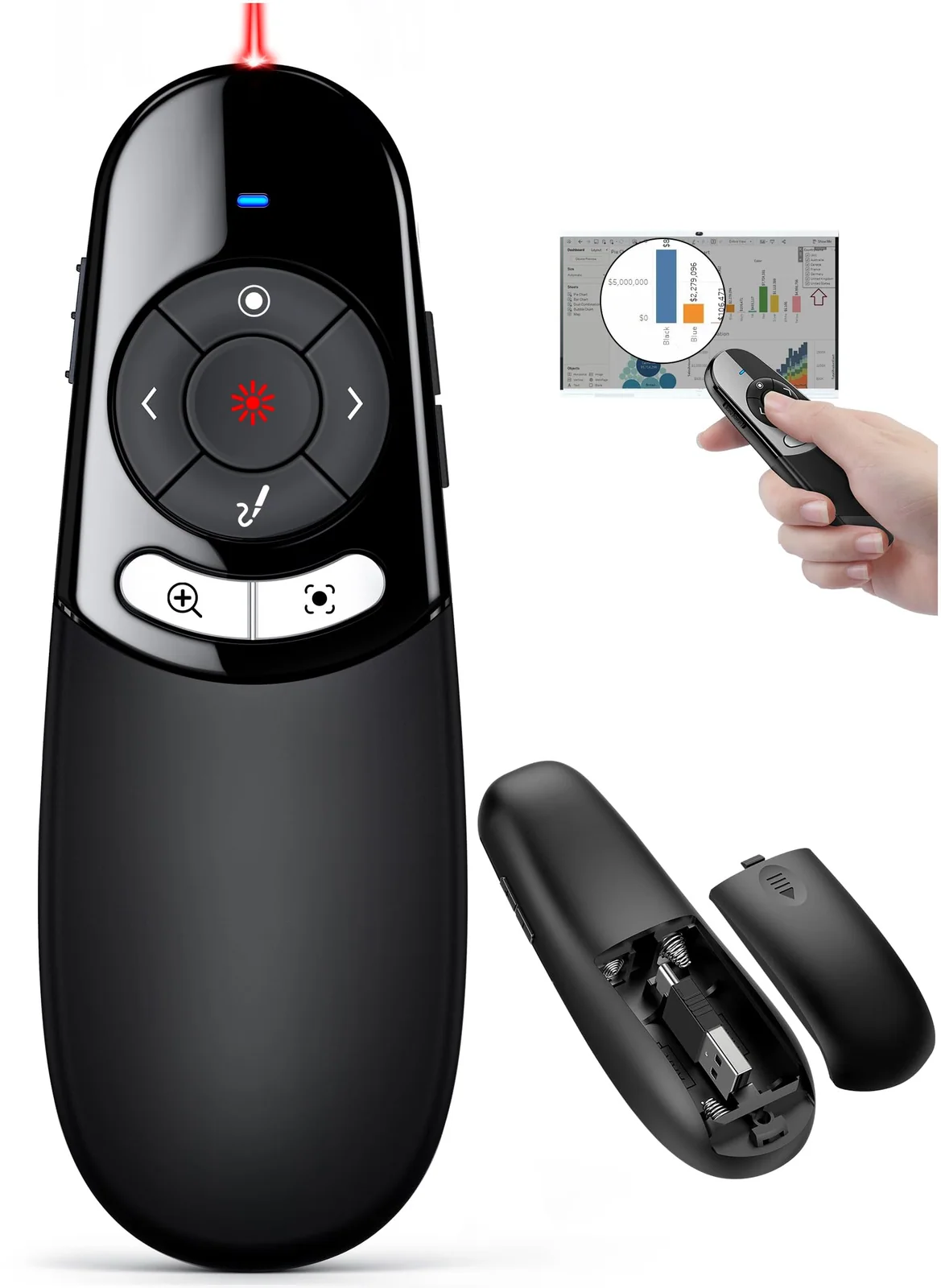
The remote itself is plain. It has separate buttons, one function per button, so you can use it without looking down. The functions are page forward, page back and black or full screen.
There is no mouse mode, no volume control and no hyperlink button. If your talk is a stack of slides that you advance in order, that is all you need.
Setup is plug and play. The brand says no software is needed, with one note: on a Mac, you may need to complete an easy set-up first. The receiver is stored under the battery cover, so it rides inside the remote instead of dangling in a laptop bag.
Power comes from AAA cells, the opposite of the rechargeable models. You never have to remember to charge it, and a dead remote is fixed with a spare cell from the drawer. Put a fresh pair in before an important talk, since cells are cheap insurance.
DINOSTRIKE gives a range of up to 49 feet, and the details give 15 meters. The brand says that lets you click from anywhere in the room while talking to the audience. For a classroom or a boardroom that is plenty.
Supported systems run from older Windows versions through Windows 10, plus Linux and Android. The software list names Keynote, Google Slides, Prezi, Word, Excel and PowerPoint. It works with one device at a time, and the details list a laptop as the compatible device.
The package is the remote, the receiver and a user manual. The brand mentions a rubber-feeling finish and a body small enough for a pocket.
Buyers rate it well for the price, though not as well as the other two. About one in ten gave it three stars, and six percent gave it one. That fits a basic remote with no extras.
We call it conditional. Buy it if your slides go on a projector and you want to spend the least. Skip it, and look at the air mouse or the digital pointer, if you present on a TV or a bright monitor, or if you ever want to click a link from across the room.
DINOSTRIKE · presenter remote with air mouse
Rechargeable, with a cursor in your hand
Datasheet · from the DINOSTRIKE page
| Works with | Laptop |
|---|---|
| Connection | Radio Frequency |
| Control | Button Control |
| Battery | Lithium-Ion Polymer |
| Weight | 27 g |
| Model | Presentation Remotes |
Works with / fits
Software: PowerPoint, Keynote, PDF, Word, Google Slides, Prezi
Compatible devices (page): Laptop
From the DINOSTRIKE product page
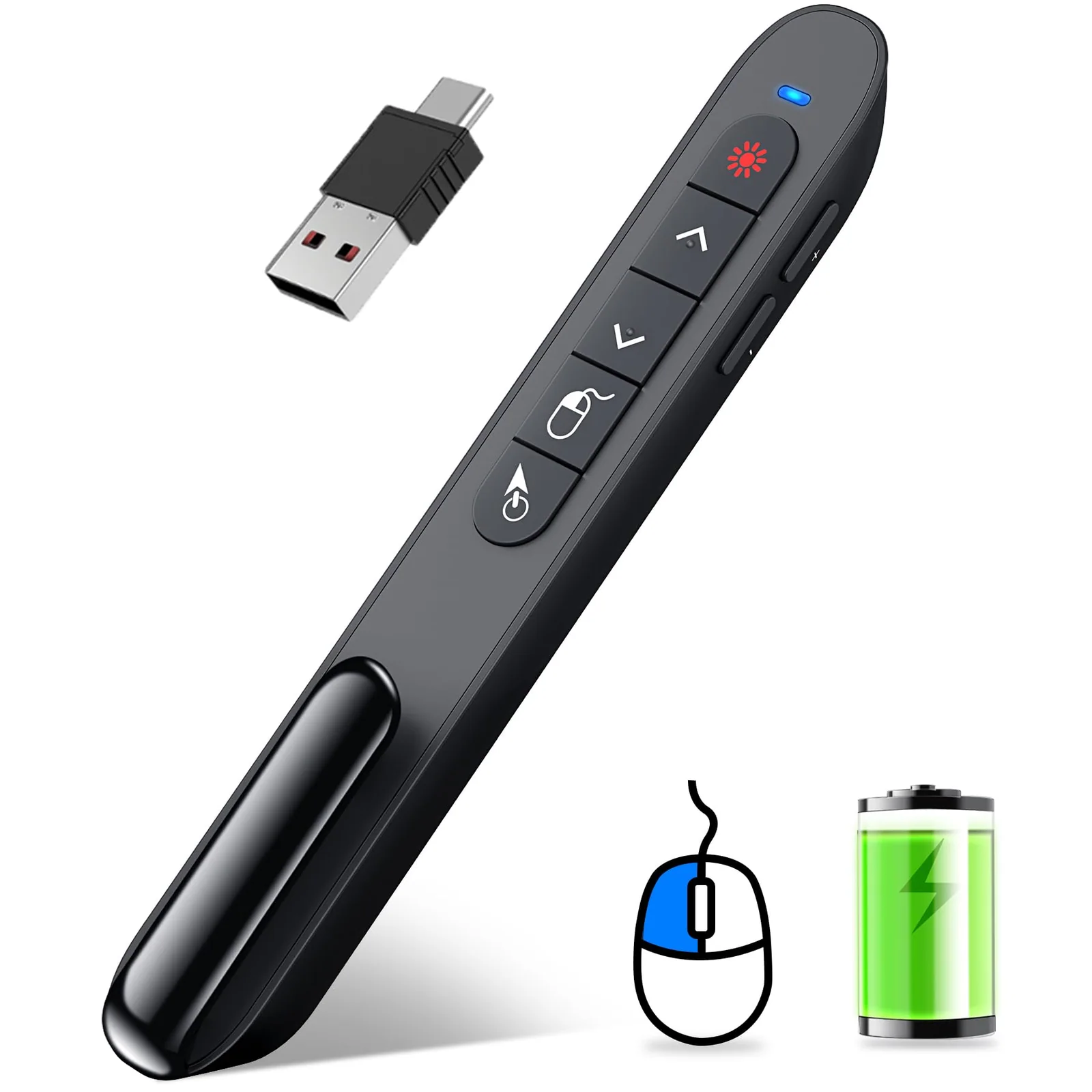
The DM100 is the one we would hand to most people. It does everything the D22 does, then adds an air mouse, a cursor you move by waving the remote in the air. DINOSTRIKE says the cursor control is sensitive and works like a real mouse.
You enter or leave mouse mode with the last button on the remote. That matters the moment a slide holds a link or a video. Instead of walking back to the laptop, you move the cursor, open the link and carry on.
The brand's function list also includes volume control, switching windows, and black or full screen. For a talk that jumps into a spreadsheet or a web page, that is a real convenience.
The range figures are the longest of the three, and they are the brand's numbers. DINOSTRIKE gives 82 feet for the air mouse, 164 feet for the wireless buttons and 656 feet for the light. You will never need the last one in an office.
The cursor reaches less far than the slide buttons. In a large room, stay inside the 82 feet when you want mouse mode.
Power is a 300 mAh lithium polymer cell that is built in and included. The brand says three hours of charging gives weeks of use, and that the remote sleeps and turns itself off when idle. That is a claim from the product page, but the sleep behavior is a sensible design.
The trade-off is plain. There are no AAA cells to swap, so a dead remote needs a cable. The title lists both USB A and USB C for the connection.
The receiver sits in the rear housing, and the remote has a clip that the brand compares to a pen clip. You can attach it to a pocket or a notebook so it stays with you. The remote weighs 27 grams, and the brand describes a curved shape for a comfortable grip.
System support is Windows 7 or 8 and above, Mac OS, Linux and Android. Software support includes PowerPoint, Keynote, PDF, Word, Excel, Google Slides and Prezi. It pairs with one device at a time.
Buyers like it a lot. About seven in ten gave five stars, and the one-star share is five percent, with 1,705 ratings behind a 4.4 average.
It is not for everyone. Anyone who wants to toss a remote in a drawer for a year and have it work on a fresh battery may find a rechargeable cell flat when the day comes. We recommend it, with one habit: charge it the night before a talk.
DINOSTRIKE · physical and digital pointer presenter
A pointer that works on a TV screen too
Datasheet · from the DINOSTRIKE page
| Works with | Computer, Laptop |
|---|---|
| Connection | Radio Frequency |
| Control | windows, mac |
| Battery | AAA |
| Model | Presentation Remotes |
Works with / fits
Compatible devices (page): Computer, Laptop
From the DINOSTRIKE product page
The X232 is the odd one, and it is odd on purpose. DINOSTRIKE calls it a physical and digital pointer. The physical part is a laser like the D22 has.
The digital part is a set of tools that run through software and draw on the screen itself. They are a digital laser, a spotlight, a magnifier, a highlighter, and an e-mark and eraser pair.
That answers the problem of the cheapest model. A red dot is hard to see on a TV or an LCD panel, but a software dot drawn by the laptop does not care what the screen is made of.
The brand says the remote works on a traditional projection screen and on an LCD or TV screen. If your talks bounce between a projector and a wall display, this is the one that handles both.
There is a catch, and the brand states it. The digital functions only work after you enable the supplied software. It comes on a silver USB flash drive, with separate files for Windows and Mac.
That means an install step on every laptop you present from. A borrowed or locked-down work laptop may not allow it, and without the software you are left with the basic buttons and the laser.
The receiver is a combined USB A and Type C plug, placed inside the back of the remote. The brand says you can switch between a Mac, a laptop and a PC with one remote. The details show one supported device at a time, so think of it as one remote for several computers, not several computers at once.
Power is two AAA cells, and the brand says they are not included. That is easy to miss and annoying on the day the box arrives.
The range is 164 feet according to the brand, with ten buttons on the body. Basic functions include page forward and back, black or full screen, volume and the physical laser, with the advanced ones layered on top.
System support is narrower than the others in one way: Windows 8 or 10 and later, and Mac OS 10.10 or later. A Linux user should look at the other two models, whose pages mention Linux.
Buyers rate it much like the air mouse. About seventy-two percent gave five stars, and roughly one in twenty gave a single star. It is the most expensive of the three, at $39.99.
We call it conditional. If you present on screens where a laser does not show, the software pointer earns the money. If a plain next-slide button is all you ever press, you are paying for tools you will not use, and the cheaper models fit you better.
How the three differ in the room
| Spec | DINOSTRIKE D22 Red Laser Clicker | DINOSTRIKE DM100 Air Mouse Presenter | DINOSTRIKE X232 Physical and Digital Pointer | Also reviewed · AcavesAcaves 910XL Ink Combo Pack | Also reviewed · AcavesAcaves 923XL Ink 4-Pack |
|---|---|---|---|---|---|
| Price | $9.99 | $25.99 | $39.99 | $36.97 | $69.98 |
| Rating | 4.3 of 5 | 4.4 of 5 | 4.4 of 5 | 4.5 of 5 | 2.7 of 5 |
| Ratings | 257 | 1,705 | 353 | 583 | 6 |
| Best for | slides on a projector or whiteboard screen, nothing else | walking a big room and clicking links mid-talk | presenters who switch between a projector and a TV | OfficeJet 8010 to 8035 owners who never enrolled in HP+ | a patient buyer with an OfficeJet Pro 8120 to 8139 and no HP+ |
Start with the pointer, because it is the real fork. The D22 has a red laser only, and the brand says not to use it on TV, LED or LCD screens. The DM100 has a red light and an air mouse cursor.
The X232 has the laser plus software tools drawn on the screen. Match the pointer to your screen before anything else.
Power is the second split. The D22 and X232 run on AAA cells, and the X232 page says its cells are not included. The DM100 has a 300 mAh rechargeable cell built in.
Which is better depends on your habits. A drawer of AAAs suits the forgetful, and a built-in cell suits the person who charges things on Sunday night.
Range is third, and it matters least. The stated figures are 49 feet for the D22 and 164 feet for the other two, with the DM100 air mouse covering 82 feet. Pick by range only if your room is a lecture hall.
Ports and software come next. The DM100 and X232 both name USB A and USB C, which helps with thin laptops that lack a full-size port. The D22 page describes a plain receiver and mentions no USB C.
The X232 is the only one that needs an install for its best features. The DM100 and D22 are plug and play, though the D22 page warns that Macs may need a short set-up first.
In short, the D22 is the budget remote for projector slides. The DM100 does the most with the least fuss, and the X232 is for flat screens and presenters who like drawing on slides.
When another kind of remote is the better call
A clicker is not always the right tool. If you present from a fixed desk, the keyboard arrow keys do the same job for nothing. A remote pays off only when you move.
A wired mouse is better when you stay put but need to click links, scroll and open files. It never needs a battery, and no one loses its receiver. The air mouse mode on the DM100 gives you freedom of movement, but holding a cursor steady in the air takes practice, so a mouse on the table wins for fine work.
A plain clicker with no laser, which only advances slides, is better when the room has a TV or monitor instead of a projector. It does not pretend to point, and it is usually the lightest and simplest option.
Software pointers like the X232 beat a red laser on bright or glossy screens, because the dot lives in the image. A laser beats software when the laptop is locked down and you cannot install anything.
A phone app that advances slides is better when you want nothing extra to carry. A dedicated remote is better when you want buttons you can find by feel, since few people can press a touch screen without looking.
What buyers say about these clickers
DINOSTRIKE D22 Red Laser Clicker
4.3 (257 ratings)DINOSTRIKE DM100 Air Mouse Presenter
4.4 (1,705 ratings) 1K+ bought in past monthDINOSTRIKE X232 Physical and Digital Pointer
4.4 (353 ratings) 100+ bought in past monthCritical buyer reviews are few for these three, so the star shares are the clearest signal. The averages sit close together: 4.3 for the D22, 4.4 for the DM100 and 4.4 for the X232.
The number of ratings is far from equal. The D22 has 257, the DM100 has 1,705 and the X232 has 353.
The cheapest remote has the most low scores. One buyer in ten gave it three stars and six percent gave it one. The air mouse and the digital pointer do better, with roughly seven in ten five-star ratings and a one-star share around five percent.
A clicker earns its stars on one thing: it works the first time, in the room, with no pairing fuss. Anything that gets in the way, such as a missing battery or a receiver that does not fit a port, tends to show up as a low score. That is why we point out the AAA cells that come separately with the X232 and the Mac set-up note on the D22.
A star rating will not tell you how a laser looks on your screen. Treat the screen type as your first check, and use the rating only to separate close choices.
Wireless control range is up to 49 feet, you can click from anywhere in the room while interacting with your audience.
Air mouse range: 82FT, Wireless control range: 164FT, Light range: 656FT
Enabling the provided software can digital functions be achieved: digital laser, spotlight, and magnify functions.
Ratings, star breakdowns and “bought in past month” figures were read on the product pages on November 16, 2026.
How to set up a clicker before a talk
A clicker takes a minute to set up, but a minute in the room is a long time with an audience watching. Do these steps at your desk the day before, and again for ten seconds when you arrive.
The steps follow the brand's own descriptions of how these remotes connect: a radio receiver in a USB port, with software only for the extra functions. Each model stores its receiver in the body of the remote, so start there.
If the remote does nothing, check the receiver first, then the cells. On the D22 and X232 that means the AAA cells, and on the DM100 it means the built-in battery, which the brand says takes about three hours to charge.
On the X232, the spotlight and magnifier will not appear until the supplied software runs. The files for Windows and Mac sit on the silver flash drive in the box.
- Take the USB receiver out of its storage spot in the remote.
- Insert fresh AAA cells, or charge the DM100 before the day of the talk.
- Plug the receiver into a free USB port on the presenting laptop.
- Open your slides and press forward and back to confirm the remote responds.
- On a Mac with the D22, finish the short set-up the brand mentions first.
- Run the supplied software if you use the X232 spotlight, magnifier or digital laser.
Which clicker we would pick
Recommended, with caveatsDINOSTRIKE D22 Red Laser Clicker
A cheap, simple remote with a red laser, but the brand itself says it is not recommended for TV, LED or LCD screens.
Power Up on AmazonWe recommendDINOSTRIKE DM100 Air Mouse Presenter
The longest stated range, a rechargeable cell and an air mouse mode make it the easiest all-round pick of the three.
Power Up on AmazonRecommended, with caveatsDINOSTRIKE X232 Physical and Digital Pointer
It adds a software spotlight, magnifier and pen for flat screens, but those extras need an install and take two AAA cells you must buy.
Power Up on AmazonWe recommend the DM100 air mouse for most people. It has the longest stated range, a rechargeable cell, a pen-style clip, a receiver that stores in the body, and an air mouse for links and windows.
The star shares back it up, and the weight is only 27 grams. If you charge it the night before, it is the least fuss of the three.
We recommend the D22 only to a narrow buyer: someone presenting on a projector or a painted wall who wants the lowest cost and does not care about a cursor. We don't recommend it if your slides go on a TV, an LED panel or an LCD monitor, because the brand itself says it is not recommended for those screens.
We would pick the X232 for the person who presents on a mix of screens and is comfortable installing the supplied software. We don't recommend it if you present from shared or locked laptops, since the digital pointer, spotlight and magnifier depend on that install. Remember too that it takes two AAA cells that are not in the box.
None of the three is a bad buy, and the gaps between them come down to the screen, the power and the software. Settle those three questions about your own room, and the choice is made.
Questions buyers ask
Which is better for a classroom, the DINOSTRIKE DM100 or the D22?
The DM100 is better for most classrooms. It states 164 feet for the slide buttons, an 82 foot air mouse and a rechargeable cell, while the D22 states 49 feet and uses AAA cells. Choose the D22 only if you want the lowest cost and present on a projector screen.
Is the DINOSTRIKE D22 good for presenting on a TV?
No, not on the brand's own word. The D22 product page says it is not recommended for TV, LED or LCD screens, because a red laser dot is hard to see on them. For a TV, the X232 with its software spotlight and digital laser is the better choice of the three.
Do these presentation clickers need software?
The basic buttons need none on the D22 and DM100, which the brand calls plug and play, though a Mac may need a short set-up first on the D22. The X232 needs its supplied software, stored on a silver USB flash drive, for the digital laser, spotlight and magnifier.
What batteries does the DINOSTRIKE X232 use?
The X232 uses two AAA batteries, and the product page says they are not included. The D22 also uses AAA cells. The DM100 is different, with a built-in 300 mAh lithium polymer battery that the brand says needs about three hours of charging.
How far can the DM100 air mouse work from the laptop?
The DM100 air mouse is stated at 82 feet, while the slide buttons are stated at 164 feet and the light at 656 feet. Those are the brand's figures. In a typical meeting room you will be well inside all three, so the air mouse range is the one to watch in a hall.
Same circuit
More office and nearby reviews
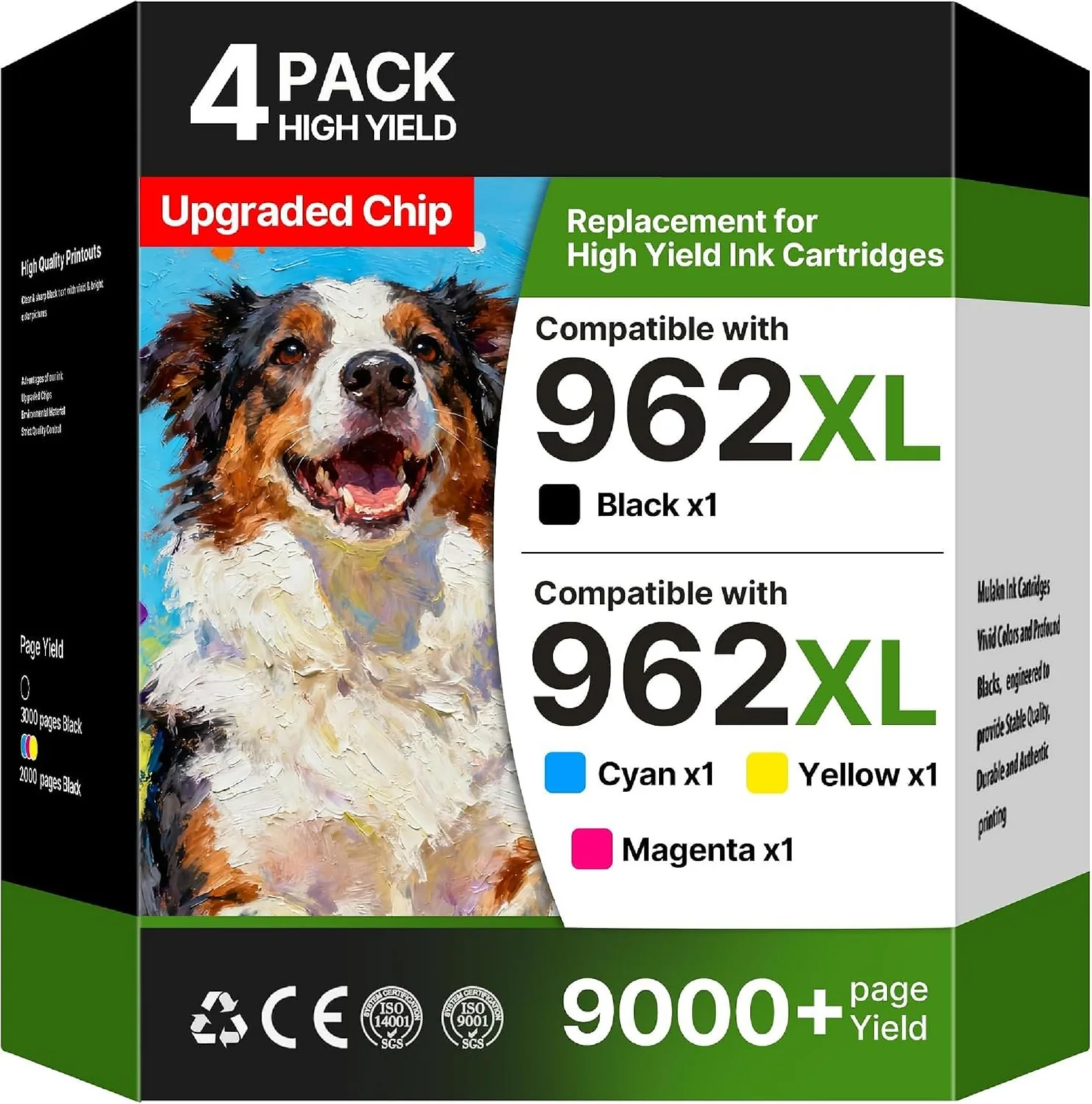
Acaves Compatible Ink for HP OfficeJet Printers, Reviewed
Four compatible HP ink sets and the one question that decides each: will your printer accept them?
Compatible 67XL and 61XL Ink Cartridges for HP Printers, Reviewed
Two third-party combo packs for HP inkjets, and the model numbers that decide which one your printer can actually use.
Acaves Compatible Ink for Brother, Canon and Epson Printers
Compatible ink only pays off if your printer accepts it, so each set is matched to its models and to what buyers report.